
Multivariable Calculus Computer Algebra Project
Oliver knill, Harvard University, knill@math.harvard.edu, Math21a, Fall 2008
Welcome to the Mathematica project of Fall 2008! This notebook will be your guide to get started. It also contains the assignement at the very end. If you work on a project, save it frequently and make backups. Have fun!
Content in a mathematica file is organized as cells. Cells can be evaluated by grabbing the bracket to the right, holding down the shift key and hitting return. Try it out in the next cell, the "Devils graph":
In[1]:=
Out[1]=
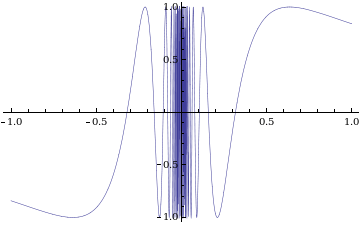
After evaluating the cell, an output cell has been added to the input cell. The output cell can be made interactive as in the following example:
In[2]:=

Out[2]=
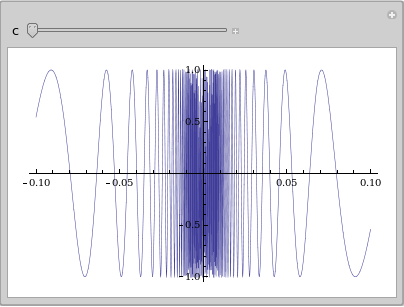
Lets get started. I suggest you read through the examples and evaluate the ones you are interested in which are hopefully all. If you are unpatient, grab the most outer bracket to the right which contains the entire notebook and evaluate it. All the cells will be evaluated.
A calculator
Anything you can do on a graphics calculator you can do with a computer algebra system, only better and more accurately. Here is an example to compute a numerical expression
In[3]:=

Out[3]=

It did not compute it numerically and left square roots of integers untouched. To get a numerical value or a numerical value or a value with accuracy 200 digits, access the previous expression (called %) and
In[4]:=

Out[4]=

Lets play with this:
In[5]:=

Out[5]=
Or look at the list of prime numbers
In[6]:=

Out[6]=
or binominal expressions
In[7]:=

Out[7]=
Some single variable calculus
One of the most common tasks one does with a computer algebra system is to differentiate and integrate. Here are several ways to write a derivative:
In[8]:=

Out[8]=

In[9]:=

Out[9]=

In[10]:=

Out[10]=

Or integration
In[11]:=

Out[11]=

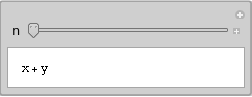
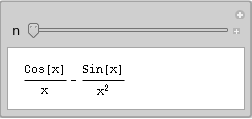
Here we can manipulate algebraic expressions with the parameter n, the number of derivatives.
In[12]:=

Out[12]=
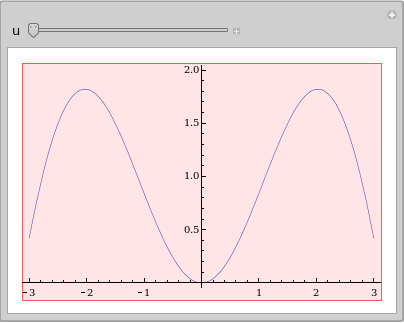
The derivative of a function gives the rate of change. Here is an animation which illustrates that
In[13]:=

Out[16]=
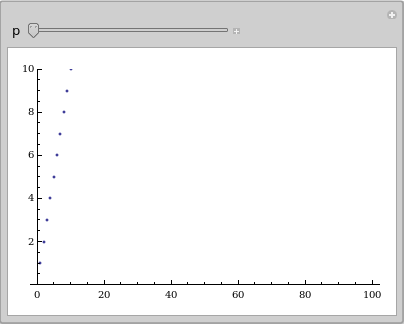
Here is an experiment which explores the convergence of p-series:
In[17]:=

Out[17]=
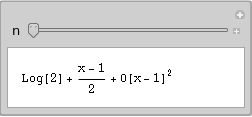
A Taylor expansion:
In[18]:=

Out[18]=
But lets move to multivariable calculus!
Graphs
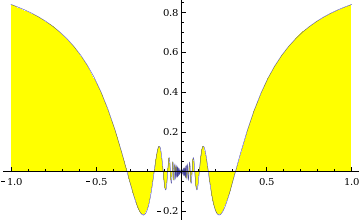
We have already seen how to graph functions of one variables. Here is an example, where the graph is filled.
In[19]:=

Out[19]=
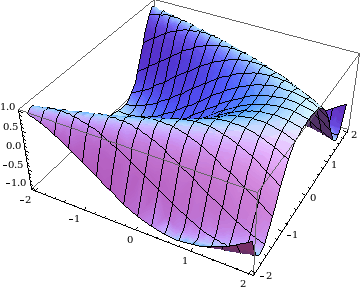
But lets move to space. With Plot3D, you can plot a function of three variables. After evaluation of the next cell, you get a graphics object, which you can manipulate with the mouse.
In[20]:=

Out[20]=
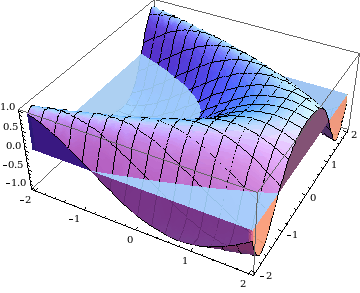
Also here, we can fill the region between the graph and the xy-plane, if we like. Lets fill it with blue water, with opacity 0.9 so that we can look through the water.
In[21]:=

Out[21]=
Several graphs at once colored differently and transparent:
In[22]:=

Out[22]=
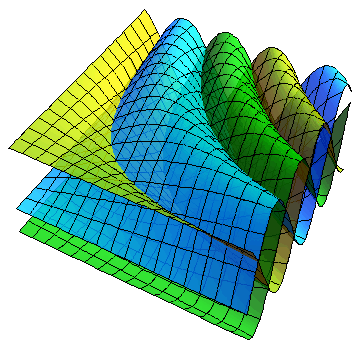
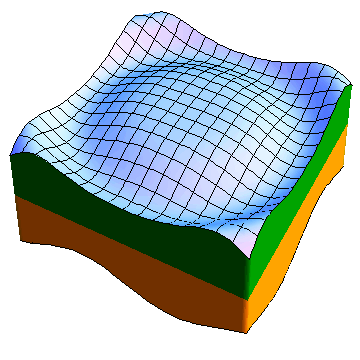
Here is a way to fill the region between two graphs.
In[23]:=

Out[23]=
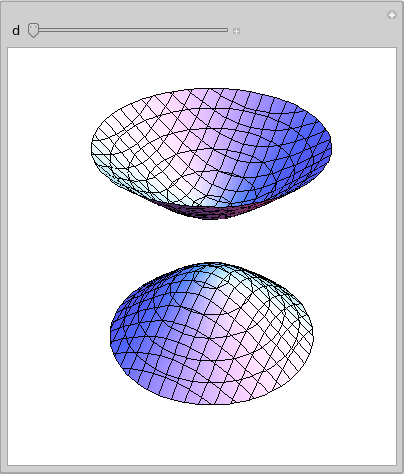
Quadrics
In[24]:=

Out[24]=
Parametrized Surfaces
In[25]:=

Out[25]=
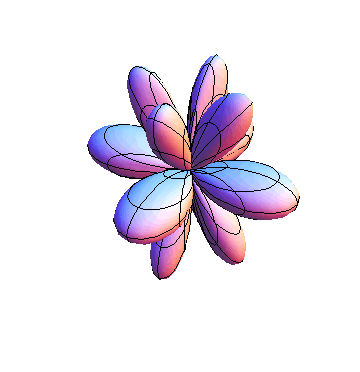
Here is an version which can be manipulated:
In[26]:=

Out[26]=
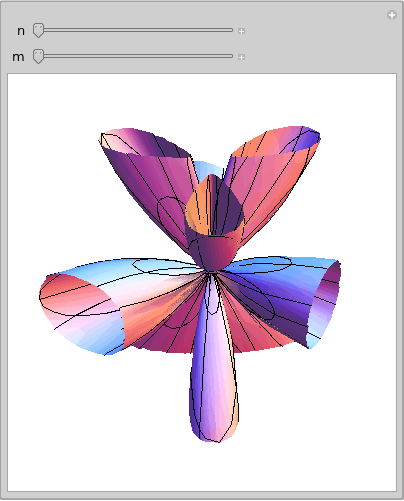
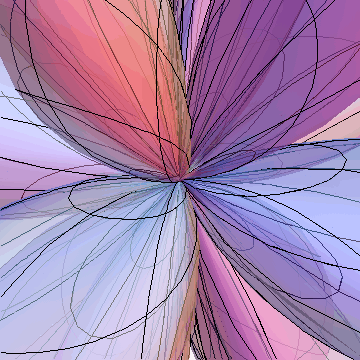
Want to be closer to the surface. Just change the View angle. Lets make it also a bit more transparent:
In[27]:=

Out[27]=
Parametrized Curves
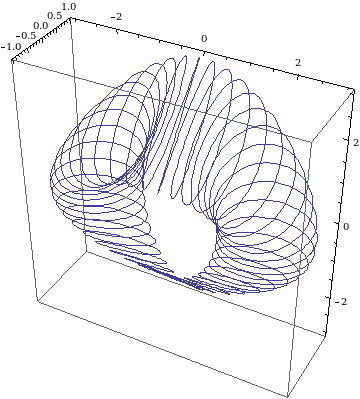
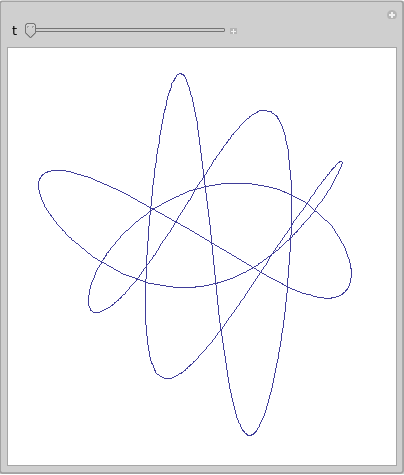
Parametric curves are plotted with the same command than parametrized surfaces. There is only one paremater.
In[28]:=

Out[28]=
In[29]:=

Out[32]=
Polar Curves
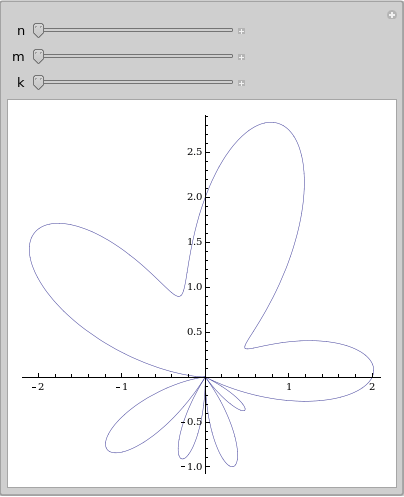
Simple formulas can produce realistic leaf shapes:
In[33]:=

Out[33]=
Splines
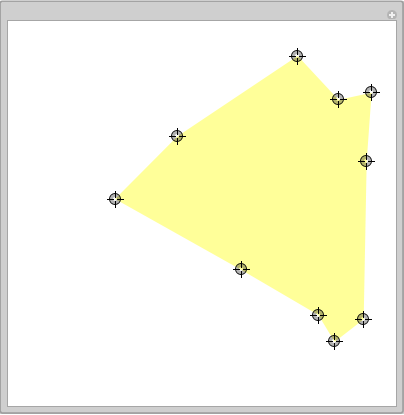
Here is an example on how points of a curve can be manipulated:
In[34]:=

Out[34]=
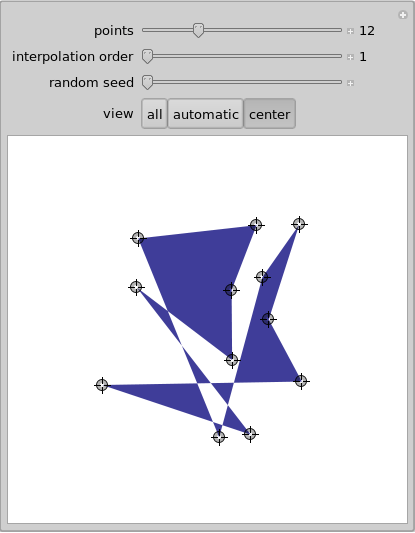
A more complicated is by Marcel Schreiber from the Wolfram demonstration project shows how to build more complex interfaces:
In[35]:=
Out[35]=
Knots
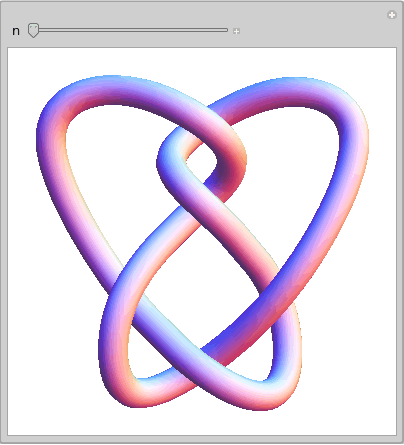
Some knots are already built in:
In[36]:=

Out[36]=
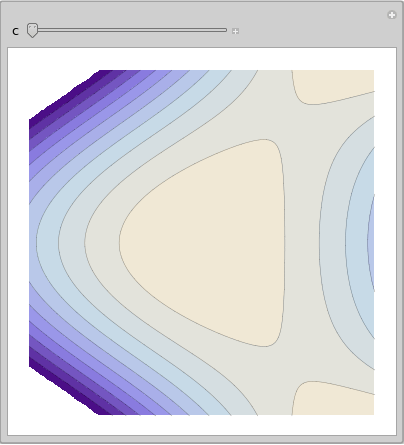
Contour maps of a function
Here we see a bifurcation. By deforming the function the critical point changes
In[37]:=

Out[37]=
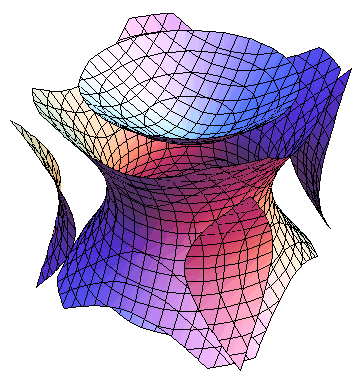
Implicit surfaces
Implicit surfaces are now plotted with CountourPlot. By default, a contour map is drawn.
In[38]:=

Out[38]=
We can specify which contour we want to see by specifying the set of values.
In[39]:=

Out[39]=
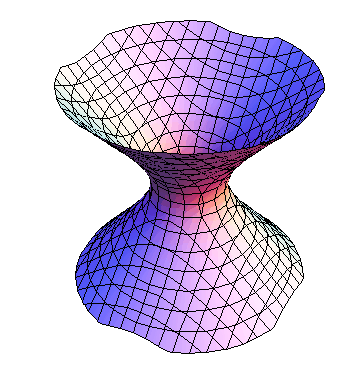
Again this can be made into a manipulation object.
In[40]:=

Out[40]=
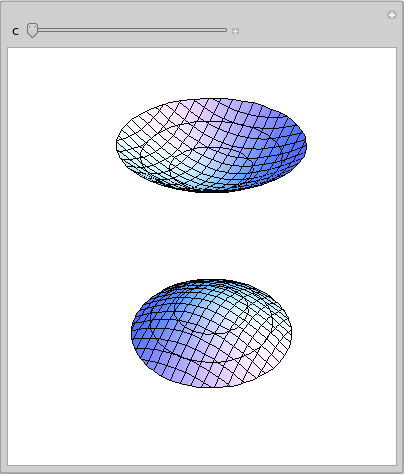
We can change the shading
In[41]:=

Out[41]=
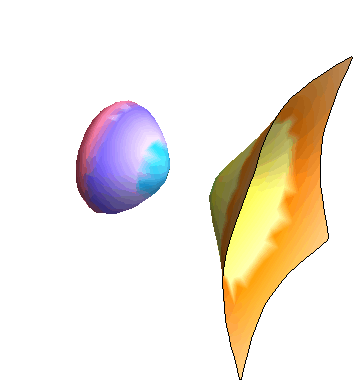
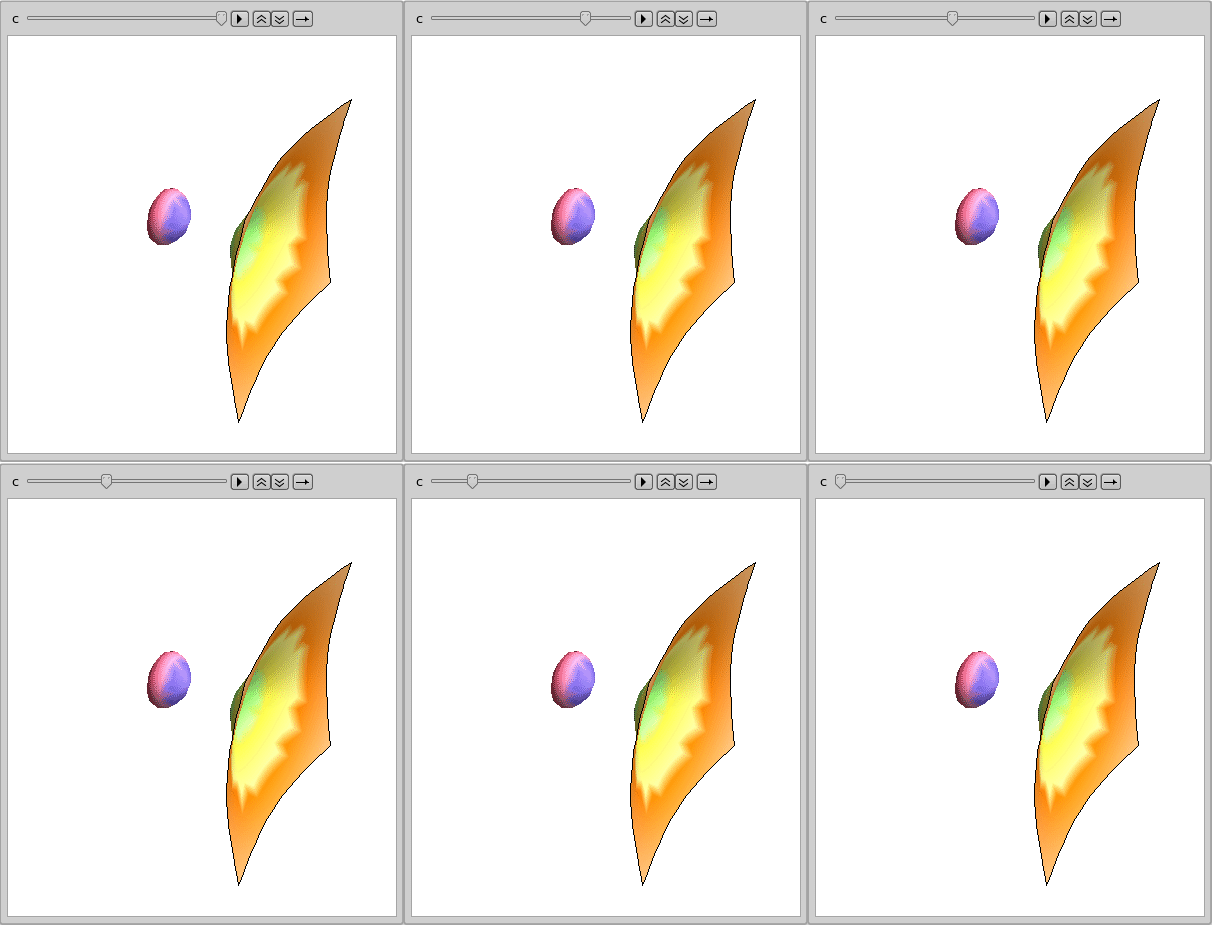
Having defined a graphics valued function, we can animate it:
In[42]:=

Out[42]=
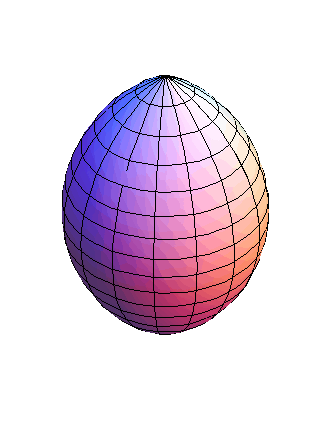
Surfaces in spherical coordinates
Go Crimson!
In[43]:=

Out[43]=
Second derivative test
The following procedure and example speaks for itself
In[44]:=

Out[45]//TableForm=
| x | y | D | f_xx | Type | f |
| -2 | 0 | -64 | 0 | saddle | 0 |
| -1 | -1 | 32 | -6 | maximum | 2 |
| -1 | 1 | 32 | 6 | minimum | -2 |
| 0 | 0 | -16 | 0 | saddle | 0 |
| 1 | -1 | 32 | 6 | minimum | -2 |
| 1 | 1 | 32 | -6 | maximum | 2 |
| 2 | 0 | -64 | 0 | saddle | 0 |
| 0 | -2 | -64 | 0 | saddle | 0 |
| 0 | 2 | -64 | 0 | saddle | 0 |
Lagrange multipliers
mathematica has in general no problems to solve Lagrange problems in with one constraint
In[46]:=

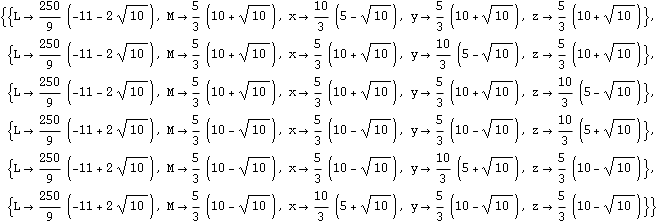
Out[48]=

or two constraints
In[49]:=

Out[52]=
Surface area
Given a parametrized surface r[u, v], we can calculate its area.The following example finds the surface area of the sphere.
In[53]:=

Out[55]=

In the next example, we have a surface, where the integral can not be evaluated symbolically and where we
switch to a numerical computation of the integral with NIntegrate.
In[56]:=

Out[58]=

Double and triple integrals
You write integrals in the same order than they appear on paper. Mathematica knows how to change the order of integration.
In[59]:=

Out[59]=

Some integrals can not be computed in closed form like:
In[60]:=

Out[60]=

you can still compute the integral numerically:
In[61]:=

Out[61]=

Triple integrals can be done in the same way. Lets compute the volume of a sphere:
In[62]:=

Out[62]=

or the moment of inertia. Of course this would be much simpler in spherical coordinates, but Mathematica can do it the hard way too and even symbolically for a sphere of radius L:
In[63]:=

Out[63]=

Vector fields
Plotting vector fields needs an external library. Here is
In[64]:=

Out[65]=
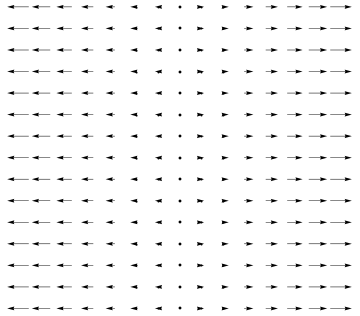
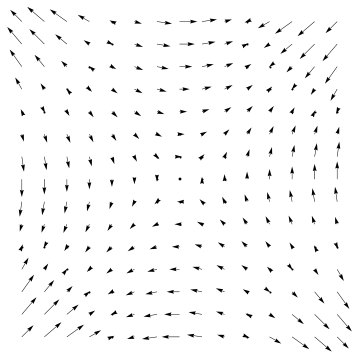
Gradient fields can be plotted directly:
In[66]:=

Out[66]=
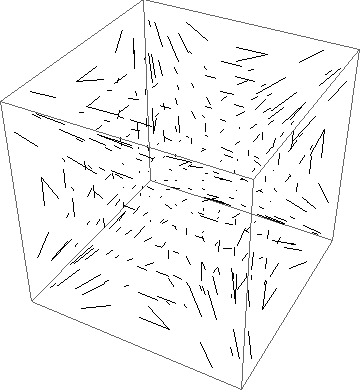
In three dimensions, you get an object which you can turn with the mouse:
In[67]:=

Out[67]=
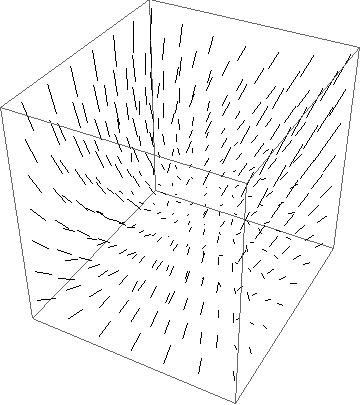
And again there is a gradient field version
In[68]:=

Out[68]=
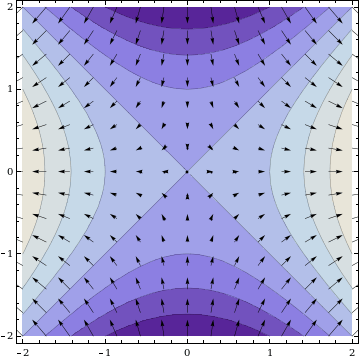
We all know that gradients are perpendicular to the level curves:
In[69]:=

Out[69]=
Line Integrals
Given a vector field F and a curve r (t), line integrals can be computed with a command like
In[70]:=

Out[72]=

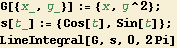
If you wanted to make this into a procedure, you could define
In[73]:=

and then give a vector field and a path as an argument:
In[74]:=
Out[76]=

Flux integrals

In[77]:=

Out[79]=

In the next example, we have a surface, where the integral can not be evaluated symbolically and where we
switch to a numerical computation of the integral with NIntegrate.
In[80]:=

Out[82]=

Greens theorem
The curl of a 2 D vector field is a scalar function.We define a Mathematica procedure which takes a vector field as an argument and returns a function :
In[83]:=

For example:
In[84]:=

Out[84]=

Greens theorem assures that the double integral of curl (F) over a region G is the line integral of F along the boundary.Lets check that : first compute the line integral :
In[85]:=

Out[86]=

Now compute the double integral of the curl of F over the region :
In[87]:=

Out[88]=

These two numbers should agree.To see the error, we ask to give the result with 20 digits :
In[89]:=

Out[89]=

Stokes theorem
The curl of a 3 D vector field is a vector field.We define a Mathematica procedure which takes a vector field as an argument and returns vector field which is the curl.
In[90]:=

For example
In[91]:=

Out[92]=

Stokes theorem assures that the flux of curl (F) through a surface S is the line integral of F along the boundary.Lets check that in a special case where S is the south hemisphere.The boundary of this surfaced is a circle in the xy - plane but note the orientation!
In[93]:=

Out[95]=

Now compute the double integral of the curl of F over the surface.Note that the parametrization is chosen such that the normal vector points outside.We compute the integral numerically :
In[96]:=

Out[100]=

It is your call to see whether the two numbers agree.
Graphics
Software like Mathematica is often also used for doing illustrations in books, articles, reports or the web.Here is an example :
In[101]:=

Out[104]=

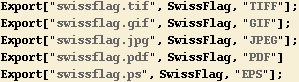
This graphics object can be exported in different formats like Tif, Gif, Jpg, PDF or Postscript :
In[105]:=
Out[108]=

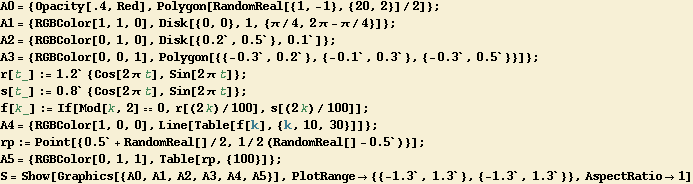
Besides polygons, you can use lines, discs or points.
In[110]:=
Out[120]=
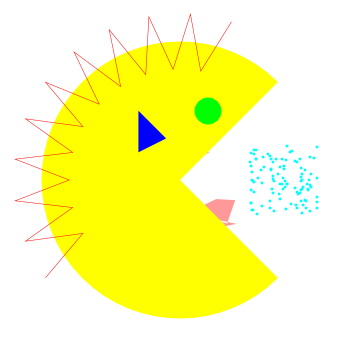
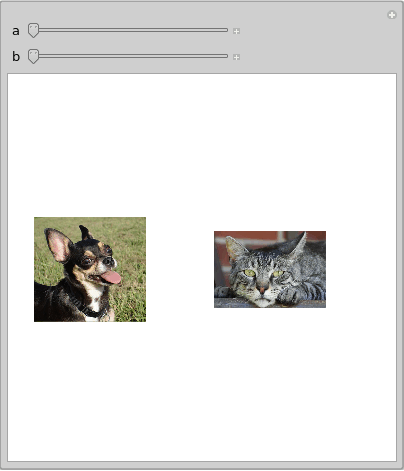
Or include pictures from the web:
In[121]:=
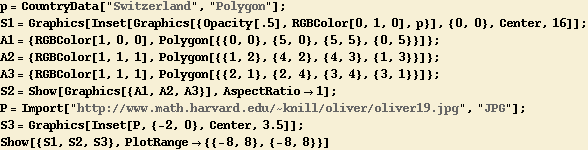
Out[129]=
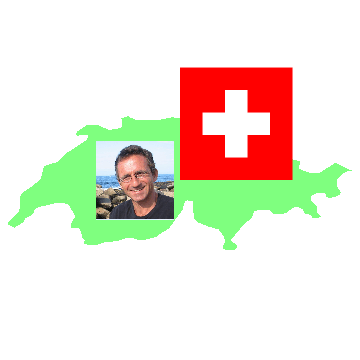
In[130]:=

Out[134]=

We can manipulate the pictures:
In[135]:=

Out[135]=
Sound
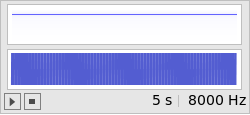
Lets play a 2000 Herz sound for 5 seconds:
In[136]:=

Out[136]=
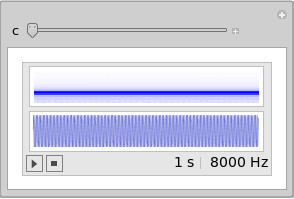
We can try to manipulate this:
In[137]:=

Out[137]=
Objects
Lets draw a snow cube polyhedron, a semiregular polyedron. With the opacity, we can adjust, how transparent the surface is
In[138]:=

Out[138]=
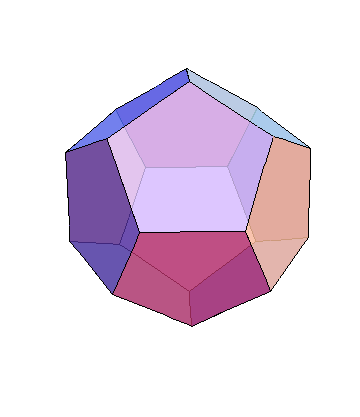
Here are all 5 regular polyhedra matched into each other
In[139]:=

Out[139]=
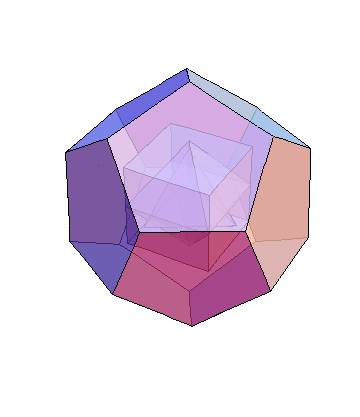
This is an example illustrating visualizing data. Here is a horse:
In[140]:=

Out[140]=
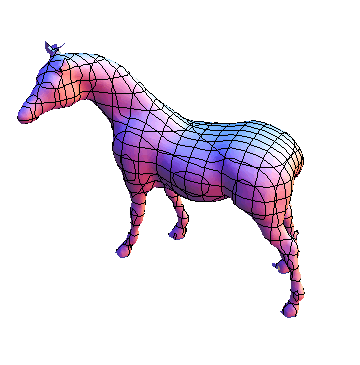
Prefer a Zebra?
In[141]:=

Out[141]=
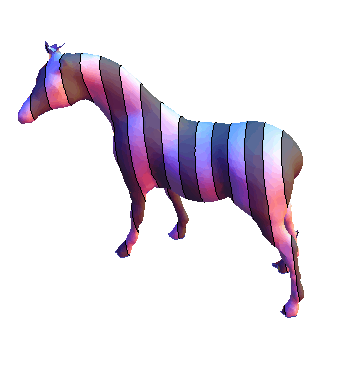
Want to look through it
In[142]:=

Out[142]=
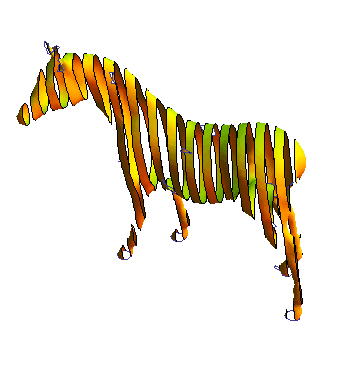
What other objects are built in?
In[143]:=

Out[143]=

Chemical Data
There is a large amount of Chemical data available. The first time you use, it it will take some time to process. But once the picture appears you can turn the molecule.
In[144]:=

Out[144]=
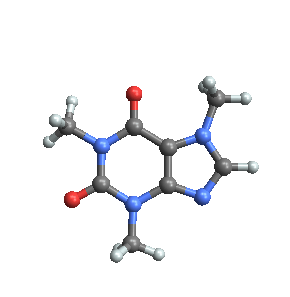
If you want to know what data are available, you can try:
In[145]:=

Out[145]=

To see all molecules available evaluate:
In[146]:=

Out[146]=

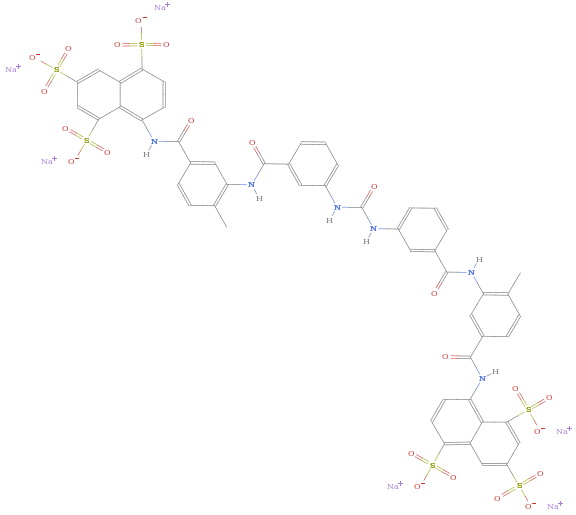
Try for example:
In[147]:=

Out[147]=
Financial Data
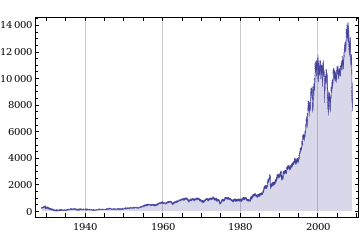
Also financial data are available. Here is a plot of the Dow Jones data:
In[148]:=

Out[148]=
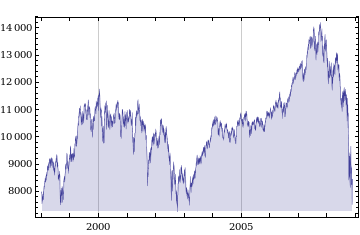
What happend with the DJI since January 1, 1998?
In[149]:=

Out[149]=
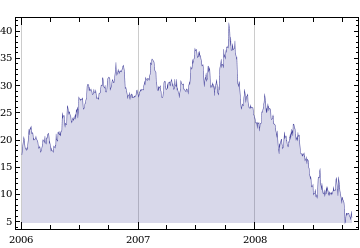
What happend with the stock of the company General Motors between January 1, 2006 and November 1, 2008?
In[150]:=

Out[150]=
Linguistic
Look up the meaning of a wrod
In[151]:=

Out[151]=

For solving crossword puzzles, the following is handy: lookup all words which start with "o" contain "er" and end with "r"
In[152]:=

Out[152]=

Lets define a function, which gives us words close to a given word :
In[153]:=

Which words are in distance 4 from "Harvard"?
In[154]:=

Out[154]=

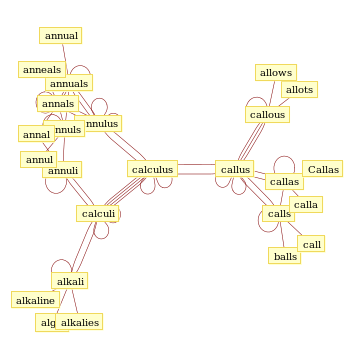
Lets see what is close to the word "Calculus" and illustrate this
In[155]:=

Out[156]=
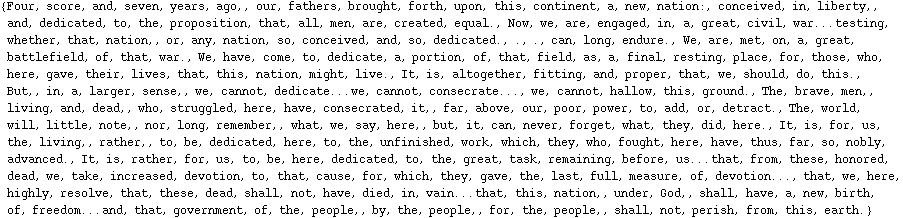
The Gettyisburg Address :
In[157]:=

Out[157]=

See the words of the Gettysburg address:
In[158]:=

Out[158]=
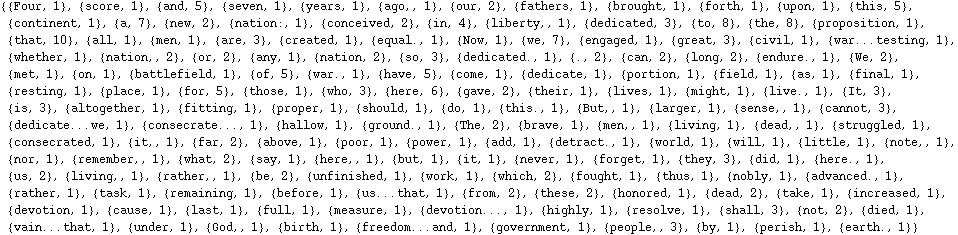
Show their frequency :
In[159]:=

Out[159]=
Lets see only the numbers, sorted and reversed
In[160]:=

In[161]:=

Out[161]=
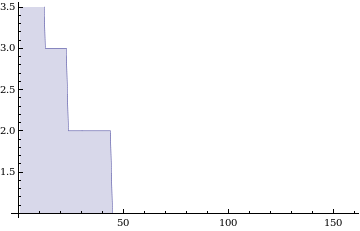
What texts are available?
In[162]:=

Out[162]=
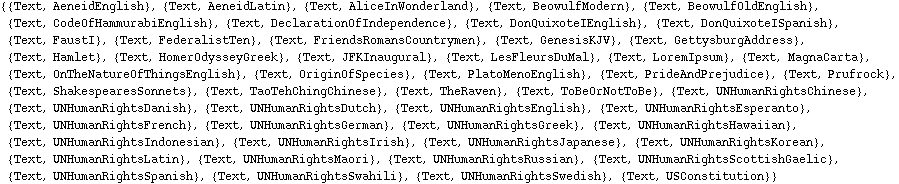
We also can get texts from the web : lets get Mark Twains "Adventures of Huckleberry Finn"
In[163]:=

The 1001'th word is
In[164]:=

Out[164]=

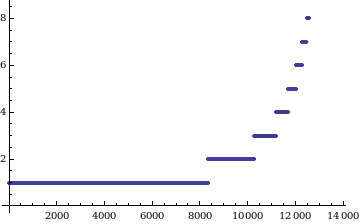
The word distribution. A bit more than 1/2 of the words appear once.
In[165]:=

Out[165]=
Animations
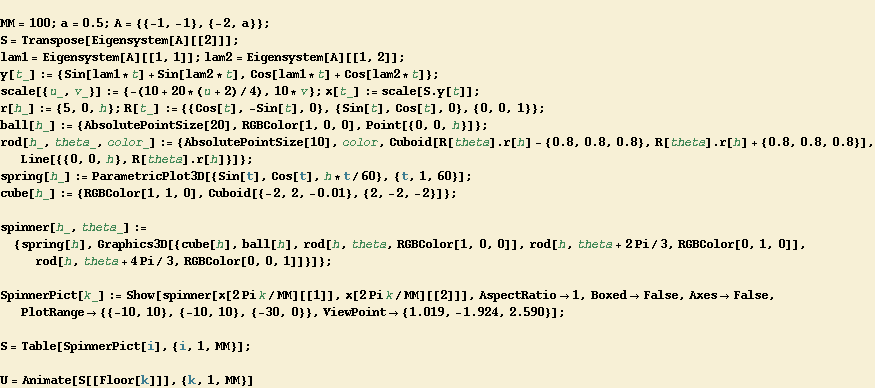
The following animation is a mechanical system. Run the cell and you will see an animated picture. You can turn around the picture while it moves.
In[166]:=
Out[179]=
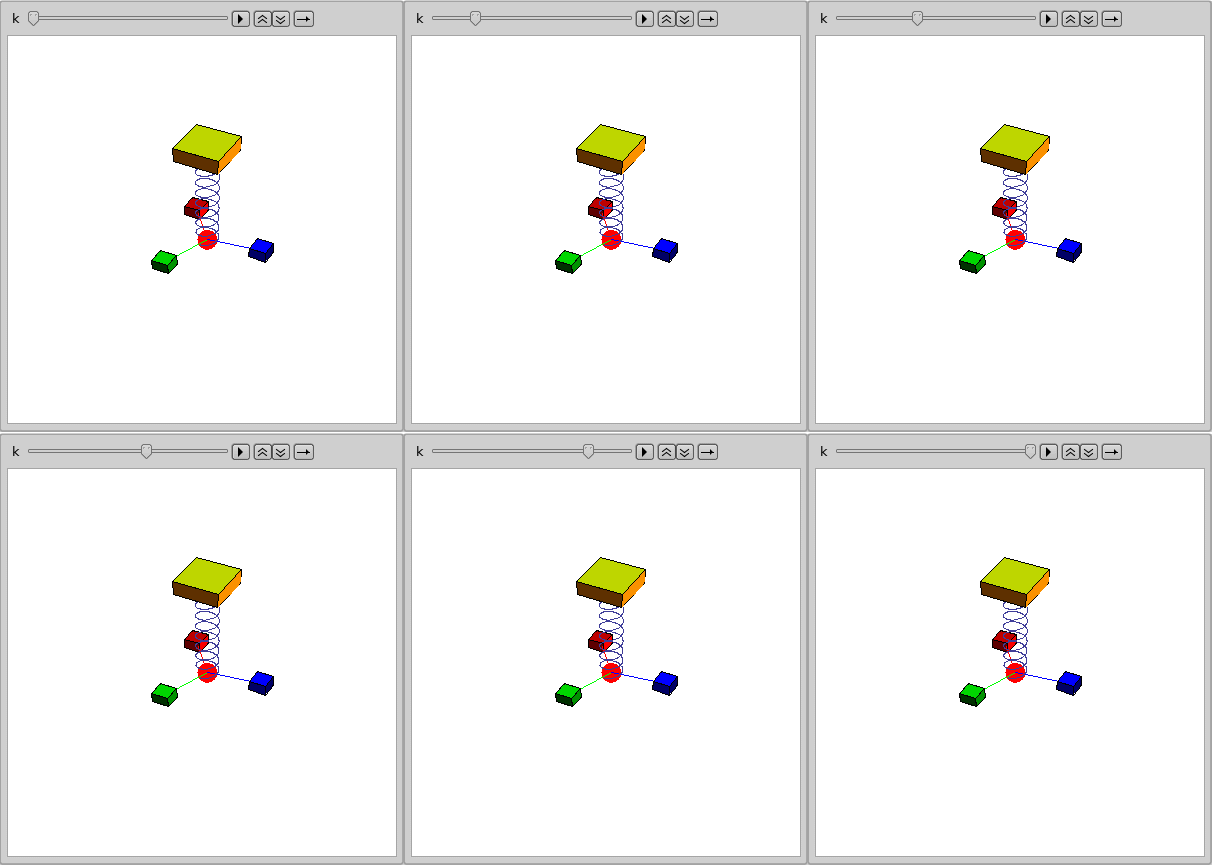
We can export this animation to Flash to embed it into a website for example:
In[180]:=

Out[180]=

Image manipulation
Lets get a picture from the web:
In[181]:=

Out[181]=

The following matrix of color vectors contains the image data:
In[182]:=

We get the (red,green,blue) color values for the pixel at position (3,4) as follows
In[183]:=

Out[183]=

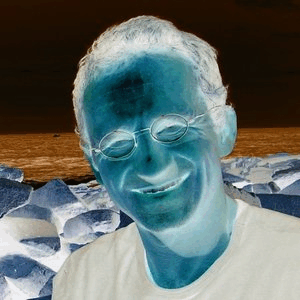
Lets do some woodoo on Oliver and invert the colors:
In[184]:=

Out[184]=
Assignment
To get full credit for this Mathematica assignment, you have to hand in :
1) (2 points) A printout of a parametric surface r (u, v) = (x (u, v), y (u, v), z (u, v)) of your choice.
2) (2 points) A printout of a spherical plot or an implicit surface of your choice.
3) (2 points) Make a molecule-plot, a stock-data plot or a text word-analysis-plot of your choice.
4) (2 points) Compute numerically the moment of inertia of a body x^4+y^4+z^4<1 spinning around the z axes.
5) (2 points) Produce graphics object of your choice (you can include pictures or work in 3D).
Your examples should be different from any example which appear in this notebook.
If you find something cool during your experiments, feel free to include it also.In order to work on your project it is a good idea to save this notebook first as a different document, do the assignment directly in that notebook and print out the relevant pages at the very end on a printer.The assignments have to be printed out and turned in the last class.
Oliver Knill, November 18, 2008, email: knill@math.harvard.edu
